
Upgrade VMware Cloud Foundation 5.2 to 5.2.1
With VMware Cloud Foundation (VCF) 5.2.1, VMware introduces essential fixes, optimizations, and minor feature enhancements aimed at improving platform performance and operational efficiency. For VCF administrators, upgrading from VCF 5.2 to 5.2.1 is straightforward but involves careful preparation to ensure a smooth transition. This blog will guide you through the upgrade process, highlighting key improvements and providing a detailed, step-by-step approach
What’s New in VCF 5.2.1?
VMware Cloud Foundation 5.2.1 includes:
Stability and performance improvements across VCF components such as vSphere, NSX-T, and vSAN.
Security patches and vulnerability fixes to enhance the overall security of the environment.
Lifecycle management enhancements, providing more efficient patching, downloading, and installing processes for a smoother operational experience.
Manage all SDDC certificates and passwords from a single UI: SDDC Manager certificate and password management functionality is now integrated in the vSphere Client to simplify and speed-up day-to-day operations. VCF users can now manage the certificates, integrated certificate authorities, and system user passwords from the Administration section in the vSphere Client.
Support for the "License Now" option for vSAN add-on licenses based on capacity per tebibyte (TiB): VCF users can now apply the vSAN TiB capacity license within the SDDC Manager UI to expand storage capacity for their workload domains and clusters. You can also use the "License Later" option to assign the per-TiB vSAN license key using the vSphere Client.
Support for vSphere Lifecycle Manager baseline and vSphere Lifecycle Manager image-based clusters in same workload domain: VCF users now have the flexibility to deploy and upgrade vLCM baseline and vLCM image-based clusters within the same workload domain.
Reduced Downtime Upgrade (RDU) support for vCenter: VCF users can now leverage vCenter Reduced Downtime Upgrade (RDU) to execute a vCenter upgrade. vCenter RDU is a migration-based approach to upgrading vCenter and reduces the vCenter downtime to less than 5 minutes.
Pre-Upgrade Checklist
Before you begin, make sure you complete the following tasks to ensure a smooth upgrade process:
Backup Critical Components:
Take a backup of the SDDC Manager, vCenter Server, NSX-T Manager, and other essential components.
Verify that snapshots are functional in case a rollback is needed.
Review the Release Notes and Known Issues:
Familiarize yourself with the release notes for VCF 5.2.1 to understand the scope of new features and any known issues.
Download the Upgrade Bundle:
Online Deployment: Connect SDDC Manager to VMware’s online repository to automatically download the upgrade bundle.
Offline Deployment: Download the bundle manually and upload it to SDDC Manager if operating in an air-gapped environment.
Step-by-Step Upgrade Process for VCF 5.2 to 5.2.1
Step 1: Start with SDDC Manager Pre-Checks
In SDDC Manager, navigate to the Lifecycle Management section.

Run the Pre-check to identify any issues that could affect the upgrade.

Address any warnings or issues flagged by the pre-check process before proceeding.
Step 2: Initiate the SDDC Manager Upgrade
Go to Workload Domains > Updates -> Plan Upgrade .
Select VCF 5.2.1 from the list of available updates, this will show you the sequence of the upgrade and plan -> Click Done
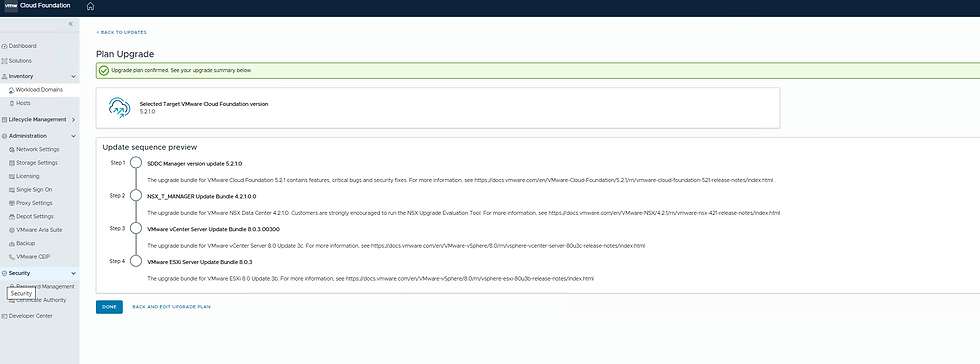
Go to Lifecycle Management > Updates in SDDC Manager Click Upgrade now to begin the upgrade.

or We can go to the regular method i.e. MGMT Domain -> Updates -> Upgrade now

Monitor the progress, which includes multiple stages. Ensure that the SDDC Manager is upgraded successfully before proceeding to the next step


It took 21mins to complete the upgrade


Step 3: Upgrade NSX-T Components
MGMT Domain -> Updates -> Upgrade NSX-T Now. Click Configured and follow the on-screen instructions to complete the precheck .
Choose the NSX-T Edge to upgrade it will do the precheck , once green proceed for the upgrade.

Once you Click on Schedule Upgrade it will ask to to select Upgrade now or Schedule -> Select Upgrade now

Monitor the progress, which includes multiple stages.

It took 1 hour 56mins to complete my edge

Once Edge Cluster is upgraded successfully , now we move on to upgrade NSX Manager MGMT Domain -> Updates -> Configure Update -> Precheck -> Update


It took 2.36 hours to complete the NSX Cluster

Step 4 : Upgrade vCenter Component , before we upgrade make sure the precheck is green .
MGMT Domain -> Updates -> Prechecks -> configure upgrade ->

Select the Network configuration if we need static or Automatic IP to be assigned . Note : If you are upgrading from VMware Cloud Foundation 4.5.x, enter the details for the temporary network to be used only during the upgrade. The IP address must be in the management subnet.


It took 1 hour 52mins to complete by vCenter.

Final component upgrade i.e. ESXI MGMT Domain -> Updates -> Prechecks -> configure upgrade -> Select custom selection to the Cluster -> Note : Go to Lifecycle Management -> Image Management -> Extract the Cluster Image and make sure its successful .


Now select the image for the cluster


Review the image and the setting and click run precheck


Once we click Run precheck it will check the hardware compatibility as well and then we proceed to upgrade .

Post-Upgrade Considerations
Monitor System Performance:
After the upgrade, closely monitor the environment for any performance issues or unusual behavior.
Use SDDC Manager’s health check tools to ensure that all components remain in a stable state.


Comments